









Time Shooter 2

- Developer
- GoGoMan
- Load Speed
- Average (1–3 min)
- Release Date
- Mar 2022
- Added Site
- Dec 19, 2025
- Play Mode
- Single Player
- Local Players
- 1 Player
- Controls
- Keyboard & Mouse, Touch Controls
- Perspective
- First-Person
What Is Time Shooter 2?
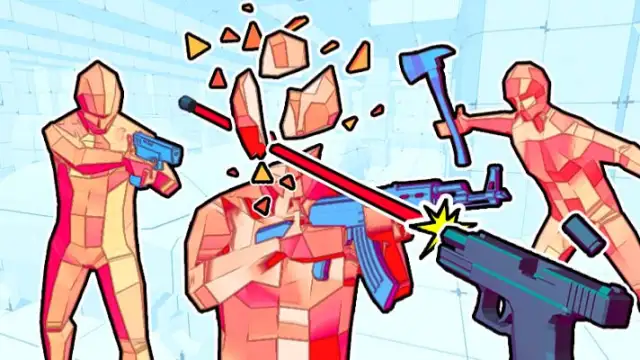
Time Shooter 2 is a single-player first-person shooter and action puzzle built around one rule: the world advances when you move. Standing still slows enemies, bullets, and moving objects almost to a stop, giving you time to inspect the arena and decide which short action should happen next.
Each level places enemies, firearms, melee items, and throwable objects in a clean 3D space. You must clear every threat without taking a lethal hit, using careful movement, accurate shots, dropped weapons, and well-timed throws instead of relying on ordinary run-and-gun reflexes.
Who Made Time Shooter 2?
Time Shooter 2 was developed by GoGoMan and released for browsers in March 2022. It expands the first Time Shooter's movement-controlled time mechanic with a broader selection of weapons, objects, and enemy arrangements.
The sequel remains focused on self-contained combat arenas rather than character levels, equipment grinding, or multiplayer matchmaking. Later series entries add their own themes and objectives, but this page covers Time Shooter 2 and does not apply Time Shooter 3: SWAT's shields, breach sequences, armoured enemies, or hostage rules to the second game.
Game Screenshots
How Does Time Shooter 2 Play?
Core time mechanic
When you stop moving, the arena becomes extremely slow. Starting another movement or combat action lets enemy aim, bullets, thrown weapons, impacts, and broken objects continue. Turning to inspect the room usually advances the situation far less than walking, so observation is the safest first action.
Time control is not a separate power button. Every movement spends some of the pause-like advantage, which makes a short sidestep followed by another inspection safer than holding a direction continuously.
Level flow
- Remain still at the start and scan the full room, including both sides and the area behind you.
- Identify enemies that are already aiming or have the clearest firing line.
- Locate the nearest usable gun, melee item, or throwable object and plan a safe route to it.
- Move only far enough to avoid an incoming bullet or reach a better attack angle.
- Stop again, check how every visible projectile and enemy has advanced, then choose the next target.
- Pick up dropped equipment, throw empty weapons when useful, and clear all remaining enemies.
- Continue into the next arena; the level sequence is designed to keep going rather than ending after a short fixed campaign.
Weapons and objects
Pistols reward deliberate shots, automatic weapons can handle groups but advance the fight quickly while firing, and shotguns are strongest after safely closing the distance. Melee items and ordinary objects can also interrupt or eliminate nearby enemies. Because ammunition is limited, note the next available item before the current weapon becomes empty.
Left click both picks up an available weapon and uses the item in hand. Right click or R throws the current weapon. An empty gun is therefore still useful: throw it to interrupt an enemy, create time to cross a dangerous lane, or reach another item.
Dodging bullets
A slow bullet reveals both its current position and likely path, but moving to dodge also lets it travel. Choose the closest safe direction, take only the distance required, stop, and verify that the projectile has passed before moving again. Check every visible firing line so avoiding one shot does not carry you into another.
Failure and retry
A direct hit normally ends the attempt and restarts the current arena. The repeated layout turns failure into information: identify whether the mistake came from moving too far, choosing the wrong first target, wasting ammunition, ignoring a side angle, or throwing the only weapon before planning the next pickup.
Game Controls
These are the verified Time Shooter 2 desktop controls. Follow the current start-screen prompts if a hosted version changes them.
Movement and view
- W A S D or the arrow keys: move
- Move Mouse: look around and aim
Weapons and objects
- Left Click: shoot, strike, or pick up a nearby weapon
- Right Click or R: throw the current weapon or object
There is no separate time-stop key: staying still creates the near-frozen state, while moving and attacking advance the action. Mobile and tablet versions use touch controls shown on screen.
How Can You Beat More Time Shooter 2 Levels?
- Do not move immediately. Scan the complete arena and locate threats, bullets, cover, and available weapons before spending time on the first step.
- Move in short bursts. Stop after each small correction so you can recalculate every projectile and enemy position.
- Prioritise the enemy ready to fire. A distant gunner with a clear line can be more dangerous than a closer enemy whose attack is blocked.
- Read the future bullet path. Dodge where the projectile will travel, not merely away from where it appears while time is slow.
- Use one deliberate action at a time. Observe, move, stop, aim, attack, and inspect again instead of combining a long movement with uncontrolled fire.
- Conserve ammunition. Confirm the aim before firing, especially when the next usable weapon is far away.
- Plan the next pickup early. Know where you will go after the current magazine is empty or after you throw the item in hand.
- Throw empty weapons. A hit can interrupt an attack and open the short window needed to reach another weapon.
- Use enemies as temporary blockers. Lining one opponent between you and another can reduce the number of clear firing lanes.
- Clear the route before collecting. Do not cross an exposed room for a stronger gun while an enemy already covers that path.
- Burst automatic fire. A short burst followed by a pause gives you another chance to inspect the fight before it advances too far.
- Change the opening after a failure. If one route repeatedly fails, adjust the first target, dodge direction, or weapon rather than repeating the same sequence.
Frequently Asked Questions
Is Time Shooter 2 free to play?
Yes. The standard browser version can be played for free. Some hosted versions may offer an optional advertisement for a temporary level-specific aid, but it is not required for normal play.
Do I need to download Time Shooter 2?
No download is required for the browser version. Wait for the 3D game files to load, then start the level directly in a compatible modern browser.
Is Time Shooter 2 multiplayer?
No. It is a single-player level-based game against computer-controlled enemies, with no online matchmaking, cooperative mode, or local two-player mode.
Can I play Time Shooter 2 on a phone or tablet?
Yes. Current browser listings support desktop, mobile, and tablet play. Touch versions display on-screen controls, although a mouse and keyboard usually provide more precise inspection and aiming.
How many levels are in Time Shooter 2?
The level sequence is presented as continuing endlessly rather than ending after a small fixed campaign. Arenas introduce new enemy positions and weapon decisions as you progress.
What should I do when a weapon has no ammunition?
Throw it with right click or R to interrupt an enemy, then move toward another firearm, melee item, or object. Plan that next pickup before giving up the only weapon in your hand.
Why can a bullet still hit me while I am standing still?
The world is extremely slow rather than a guaranteed safety pause, and a bullet already close to your body may still reach you. Begin the dodge before the projectile enters immediate striking distance.
What should I do if Time Shooter 2 loads slowly or stutters?
Close heavy tabs, allow JavaScript and WebGL, enable browser hardware acceleration, and disable extensions that block game files. Refresh after the initial assets finish or try a current Chrome or Edge version if the game remains stuck.
What should I do if the game won't load, lags, shows a blank screen, or won't start?
Try one of these four steps:
- Clear your browser cache, then reload the game.
- Open the game in an incognito or private browsing window.
- Try a different browser, such as Microsoft Edge or Google Chrome.
- On the game cover, click Primary in the top-right corner and select a different game source, if available.
What should I do if matchmaking stays on "Connecting" or the loading circle keeps spinning?
Matchmaking can take longer when fewer players are online or when servers are busy. A persistent "Connecting" message can also indicate a connection or server issue. Try these options:
- Recommended: on the game cover, use the source selector in the top-right corner (usually labeled Primary) to try another available game source. This may help if the current source is having connection issues, but different sources may share the same matchmaking servers. If no other source is available, try the options below.
- Browse Similar Games on this site and try a similar game while you wait.
- Choose a Single Player game that does not require matchmaking. PvE games may also be suitable, but check that they support solo play: a PvE tag alone does not guarantee single-player or offline play.



Leave a Comment
Comments (0)