INKWAVE: Turf Riot is a third-person ink shooter where painting the floor can matter more than winning a duel. Cover the arena in your team's color, turn into a squid to travel through friendly ink, and use that same ink to refill before the next fight.
Created by Jayden Davis, the game offers solo bot matches and online rooms. This expanded, touch-enabled edition includes Turf War, Zone Control and a cooperative boss battle. Build a loadout from a main weapon, sub weapon and special ability: a rapid-firing Spritzer, broad-painting Roller or charged long-range weapon calls for a different approach.
Game Screenshots
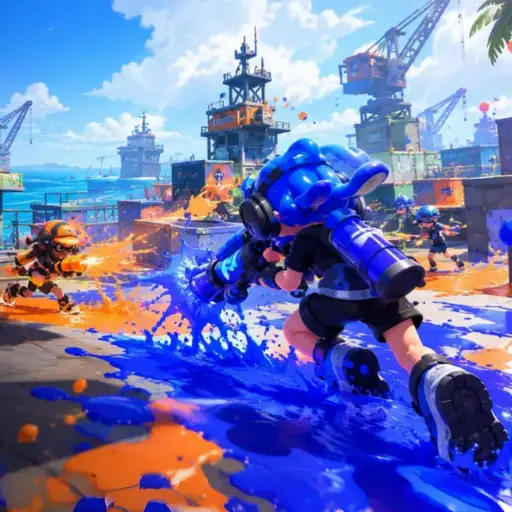
INKWAVE: Turf Riot gameplay screenshot.
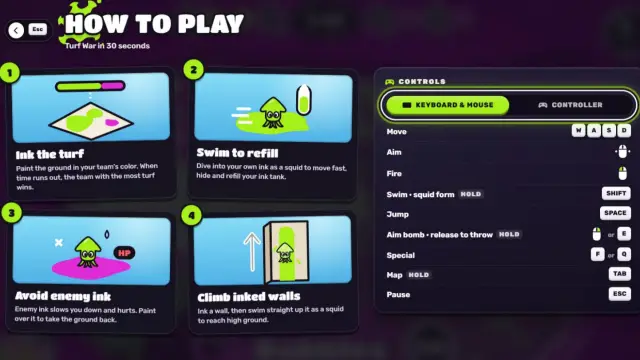
How to Play INKWAVE: Turf Riot
Paint a Route, Then Fight
Start by laying down connected paths of friendly ink. Squid form lets you move quickly through them, refill your ink supply and climb painted walls. Enemy ink slows you down and chips away at your health, so repaint a route before pushing into hostile ground. Open water is a hazard, not another swimming lane.
Your main weapon and sub weapon draw on ink, while painting also builds your special gauge. Retreat into a safe painted patch when supplies run low instead of taking another fight with an empty tank. After being splatted, you can use the tactical map to plan a Super Jump back to an ally or your base.
Turf War and Zone Control
In four-versus-four Turf War, the team with more painted ground at the end wins. Eliminating opponents opens space, but leaving that space unpainted wastes the advantage. Solo matches use bots, with three difficulty settings.
Zone Control changes the priority: paint and hold the currently marked objectives to bring your team's counter from 100 to zero. Zones rotate, losing control can add a penalty, and overtime can keep a contested finish alive. Painting a distant corner is less useful here than helping secure the active zone.
Cooperate Against Hullbreaker
Boss Battle puts your squad against a giant armored hermit crab, with bot help in solo play or friends online. Defeat Hullbreaker before time runs out; territory coverage is no longer the victory condition. Shoot its glowing eyes and punish exposed weak points after a stun. Leave marked impact circles, sidestep charges and repaint corrupted ink so the squad has room to dodge and refill.
Game Controls
Movement and Weapons
WASD: move
LRMove Mouse: look around and aim
LRLeft Click: fire the main weapon
⇧ Shift: enter squid form and swim through friendly ink
␣ Space: jump; some weapons combine jumping and firing for special movement
LRRight Click or E: use the sub weapon, not precision aim
F: activate a charged special ability
Map and Menus
Tab or M: hold to open the tactical map
1–3: select a teammate for a Super Jump while the map is open; 4: return to base
Esc: pause or open the menu
On phones and tablets, use landscape orientation. The left stick moves your character; the right-side controls handle aiming and firing, with separate buttons for jumping, squid form, sub weapons, specials and the map.
INKWAVE: Turf Riot Tips
Connect your paint. A continuous ink lane gives you a fast escape and refill route. Isolated patches are much less useful when an enemy pushes you back.
Use a splat to claim space. In Turf War, repaint the ground an eliminated opponent was protecting instead of chasing the next duel immediately.
Keep an ink reserve. Throwing a sub weapon just before a close fight can leave too little ink for your main weapon. Refill behind cover before committing.
Match the weapon to the route. Use a Roller to cover broad ground, charged weapons to threaten longer sightlines, and the Bucket's arcing shot to pressure enemies behind cover.
Check the landing area before a Super Jump. Choose an ally with room to support you rather than jumping straight into the enemy's strongest position.
Make breathing room in Boss Battle. Repaint unsafe ground during attack gaps, then focus exposed weak points. Chasing damage through corrupted ink makes the next dodge harder.
Watch & Learn
INKWAVE: Turf Riot Gameplay
Watch INKWAVE: Turf Riot gameplay and learn the basics.
Click to Play Video
Frequently Asked Questions
Do I need an account to start playing?
No account is required. You can start a bot match or join a room without registering.
Can I automatically queue with random online players?
Online play uses private rooms rather than a public matchmaking queue. Host a room and share its five-character code, or enter a friend's code. The host can enable bots to fill empty slots.
Why do guides show different weapons or maps?
Some guides describe an older build, while this expanded edition adds more weapons, maps and touch controls. Check the current game's mode and loadout menus when a guide shows different options.
What should I check if my controller is not detected?
Use a secure HTTPS page, connect a standard gamepad and press a button after entering the game. Check the control settings and try a current Chrome or Edge browser if input is still missing.
Can I make the two ink colors easier to distinguish?
Yes. The settings include a colorblind-safe yellow-and-blue team palette.
What can I change if the game stutters?
Lower the quality tier and close other graphics-heavy tabs. On a phone or tablet, use landscape mode. Frame-rate problems and delayed online responses are different: if movement looks smooth but opponents lag, check your connection instead of only lowering graphics.
What should I do if the game won't load, lags, shows a blank screen, or won't start?
Try one of these four steps:
Clear your browser cache, then reload the game.
Open the game in an incognito or private browsing window.
Try a different browser, such as Microsoft Edge or Google Chrome.
On the game cover, click Primary in the top-right corner and select a different game source, if available.
What should I do if matchmaking stays on "Connecting" or the loading circle keeps spinning?
Matchmaking can take longer when fewer players are online or when servers are busy. A persistent "Connecting" message can also indicate a connection or server issue. Try these options:
Recommended: on the game cover, use the source selector in the top-right corner (usually labeled Primary) to try another available game source. This may help if the current source is having connection issues, but different sources may share the same matchmaking servers. If no other source is available, try the options below.
Browse Similar Games on this site and try a similar game while you wait.
Choose a Single Player game that does not require matchmaking. PvE games may also be suitable, but check that they support solo play: a PvE tag alone does not guarantee single-player or offline play.














Leave a Comment
Comments (0)