











Dude Theft Auto
- Developer
- Independent Studio
- Load Speed
- Not specified
- Release Date
- 2025
- Added Site
- Oct 10, 2026
- Play Mode
- Single Player
- Local Players
- 1 Player
- Controls
- Keyboard & Mouse, Touch Controls
- Perspective
- First-Person
What Is Dude Theft Auto?
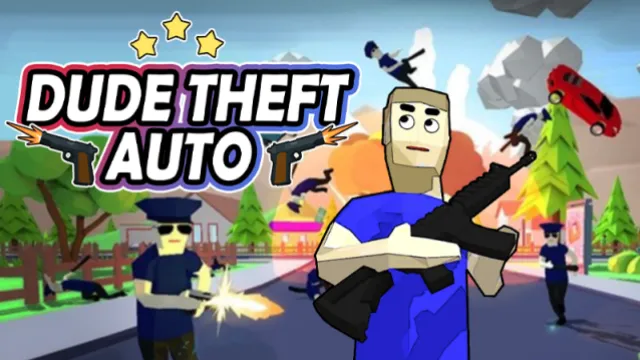
Dude Theft Auto is a cartoon-style 3D city sandbox credited. Start as Jack, leave your house and decide whether to explore, drive, collect money or start a fight. First-person movement and shooting are mixed with exaggerated physics, so it is more about experimenting in the city than winning a sequence of arena rounds.
The browser experience described here is single-player free-roam with AI residents and police. Jack has a slow-time ability, and weapons and vehicles give you different ways to approach trouble. You can also explore without immediately provoking a chase.
Game Screenshots
Money, Vehicles and Wanted Stars
Find Your Way and Build Up Equipment
Begin in the house, then head into the neighborhood. Use the map to orient yourself and locate useful places rather than wandering without a destination. Money can be picked up from residents or stolen from other locations. The weapon shop sells weapons and ammunition, so collecting cash gives you more options for later fights.
Choose When to Fight the Police
Attacking NPCs raises your wanted stars. Once wanted, you face police pursuit and gunfire, not just harmless pedestrians. The game's tutorial explains that defeating police can reduce those stars, but your health still limits how long you can keep fighting. Jack's slow-time ability provides another tool when you need more time to react.
Travel by Car
Approach a car and use the vehicle-entry button to get in or out. The driving tutorial provides acceleration, reversing, steering, handbrake, nitro and look-back controls. Use a vehicle to cover distance, then slow down before tight turns or obstacles. Treat driving and fighting as different tasks: a poorly controlled escape can leave you in a worse position than the chase you were trying to avoid.
Game Controls
Keyboard and Mouse
- W ↑ A ← S ↓ D →: move on foot
- Move Mouse: look around and aim
- Left Click: shoot or attack
- ␣ Space: jump
- Q / E: previous / next weapon
- Z: map
- Tab: slow time
- Esc: pause and open Resume, Main Menu or Tutorial
On-Screen and Driving Controls
The built-in tutorial also shows a virtual joystick for walking, dragging to look around and buttons for jumping, attacking, changing weapons and slowing time. Vehicles have a separate button layout for entry, acceleration, reversing, steering, handbrake, nitro and looking back. Follow that driving tutorial rather than assuming the on-foot shortcuts perform the same actions in a car.
Keep Control of the Chaos
- Learn the neighborhood before provoking police. Locate a shop and a usable vehicle first, so you have a destination and an escape option when the wanted stars rise.
- Spend money with ammunition in mind. A new gun is less useful if you cannot keep it supplied. Check both equipment and ammunition before deliberately starting another fight.
- Watch the stars as well as your target. Attacking a resident changes the police threat. Do not assume finishing one fight means the surrounding area is safe.
- Use slow time with a purpose. Activate Jack's ability when you need to line up an attack or assess a dangerous position, rather than treating it as a substitute for watching your health.
- Keep nitro for a clear route. The extra speed is useful for travel, but steering into a tight corner at full speed makes an escape harder to control.
Frequently Asked Questions
Why are the other characters locked?
The inspected browser version offers Jack, while the other two character cards say Coming Soon and Locked. Those labels are not evidence that spending money or completing a particular mission will unlock them. Do not expect a mobile-app character roster to match this version.
How can I keep a vehicle I find?
The built-in tutorial points to the garage next to your house and says you can park and save a vehicle there. Bring the vehicle back to that garage instead of simply leaving it somewhere in the street. This does not establish cross-device or cloud storage.
Why did my recent progress disappear after I died?
The tutorial says reaching zero health reloads your last savegame. Changes made after that save may therefore be lost. Use the game's save feature before a risky session; do not assume that every purchase or action is automatically saved. The exact persistence behavior still needs checking in your browser.
What can I change if the game runs poorly or slow-motion kills bother me?
From the main menu, open Setting. The inspected version has a Resolution slider with Half, Mid and Full positions: reduce it if rendering is too demanding. Slowmo Kills can also be switched off there. That setting controls the kill effect; it is separate from Jack's slow-time ability.
What should I do if the game won't load, lags, shows a blank screen, or won't start?
Try one of these four steps:
- Clear your browser cache, then reload the game.
- Open the game in an incognito or private browsing window.
- Try a different browser, such as Microsoft Edge or Google Chrome.
- On the game cover, click Primary in the top-right corner and select a different game source, if available.
What should I do if matchmaking stays on "Connecting" or the loading circle keeps spinning?
Matchmaking can take longer when fewer players are online or when servers are busy. A persistent "Connecting" message can also indicate a connection or server issue. Try these options:
- Recommended: on the game cover, use the source selector in the top-right corner (usually labeled Primary) to try another available game source. This may help if the current source is having connection issues, but different sources may share the same matchmaking servers. If no other source is available, try the options below.
- Browse Similar Games on this site and try a similar game while you wait.
- Choose a Single Player game that does not require matchmaking. PvE games may also be suitable, but check that they support solo play: a PvE tag alone does not guarantee single-player or offline play.

Comments (0)